Lab Preparation
Prepare the virtual environment for our labs.
Lab Tasks – Confirmation and Preparation
Before we dive into the configurations, we need to do some basic housekeeping. First, check your topology status—if it’s not currently Running, go ahead and hit Start. It will take 15-20 minutes for the lab to set up and CVaaS to start.
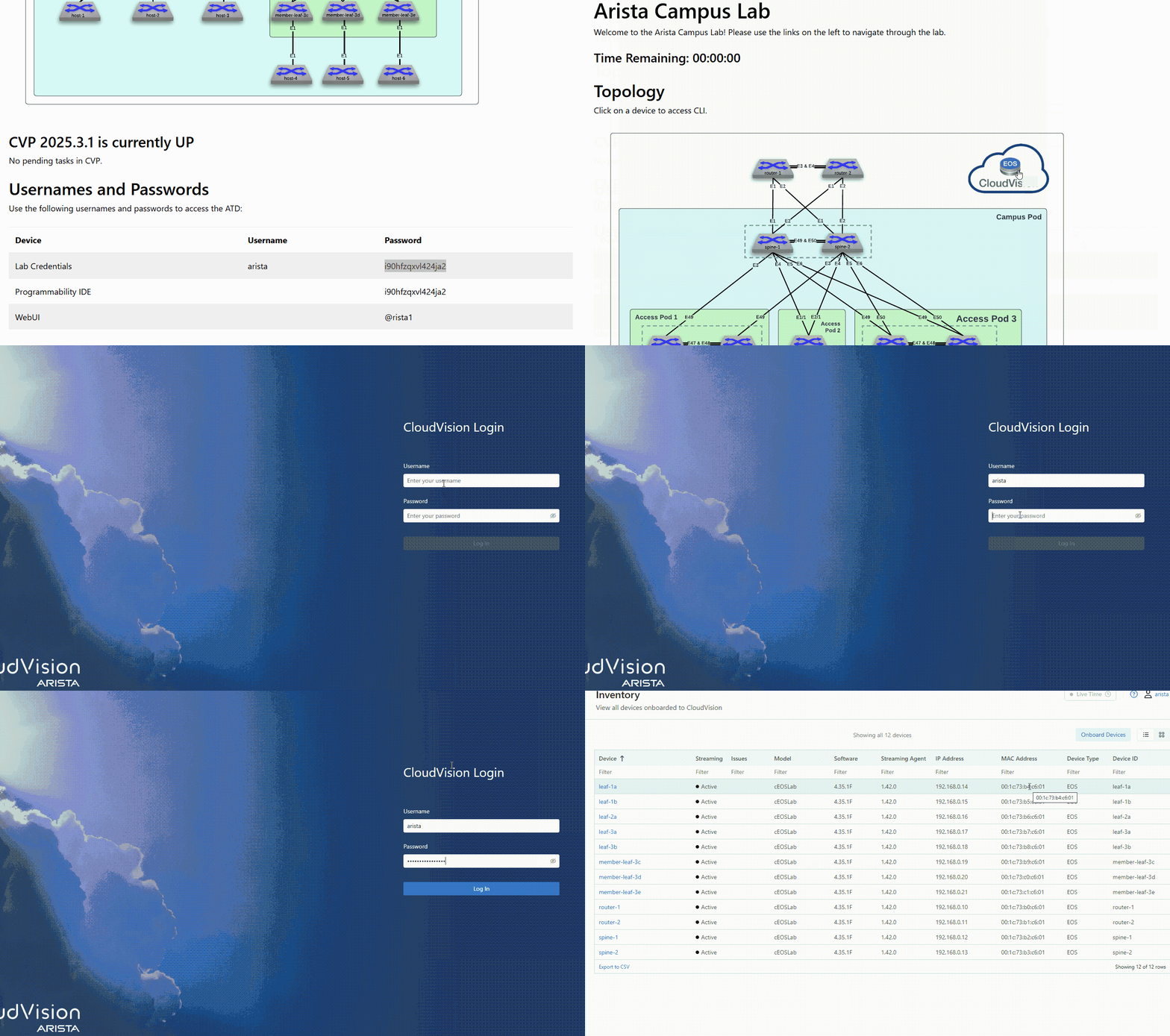
While that’s spinning up, look for your unique password at the bottom of the topology screen. You’ll use the username arista for everything in this lab, but that password is your specific key to these virtual devices.
1) Confirm your topology is currently Running, if not, click Start.
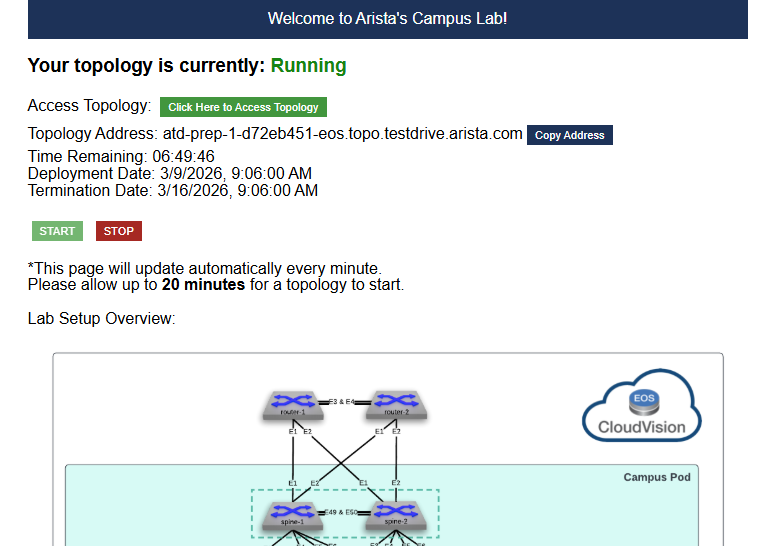
2) Click the Click Here to Access Topology button.
3) Scroll down. Locate and copy your unique password. Note* The Username is always arista
4) Click the CloudVision icon, then login using arista and your password.
Lab Tasks - Set CVaaS Features
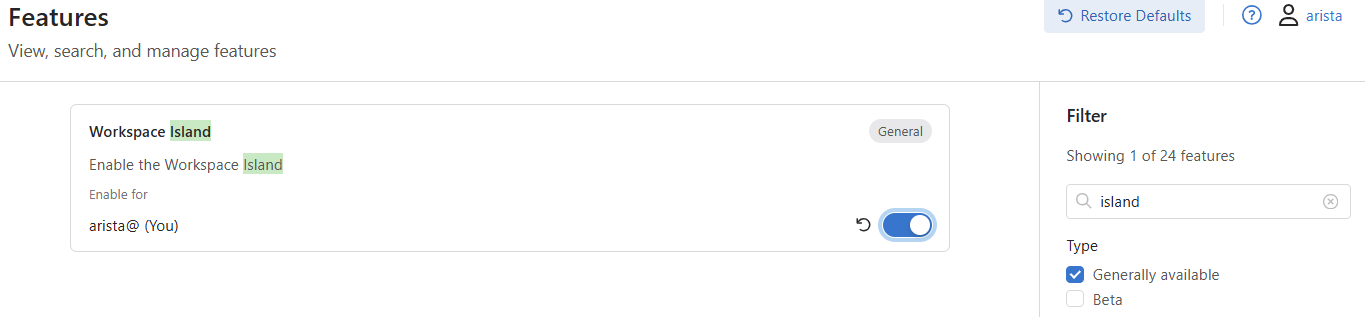
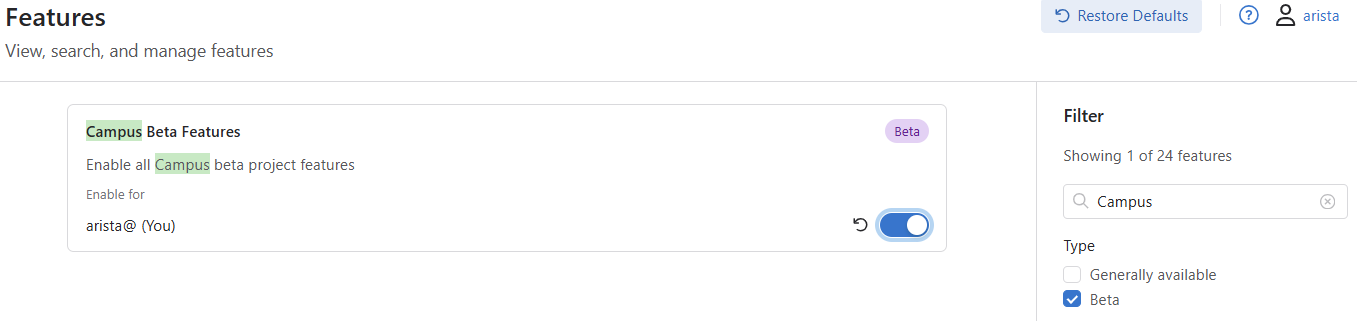
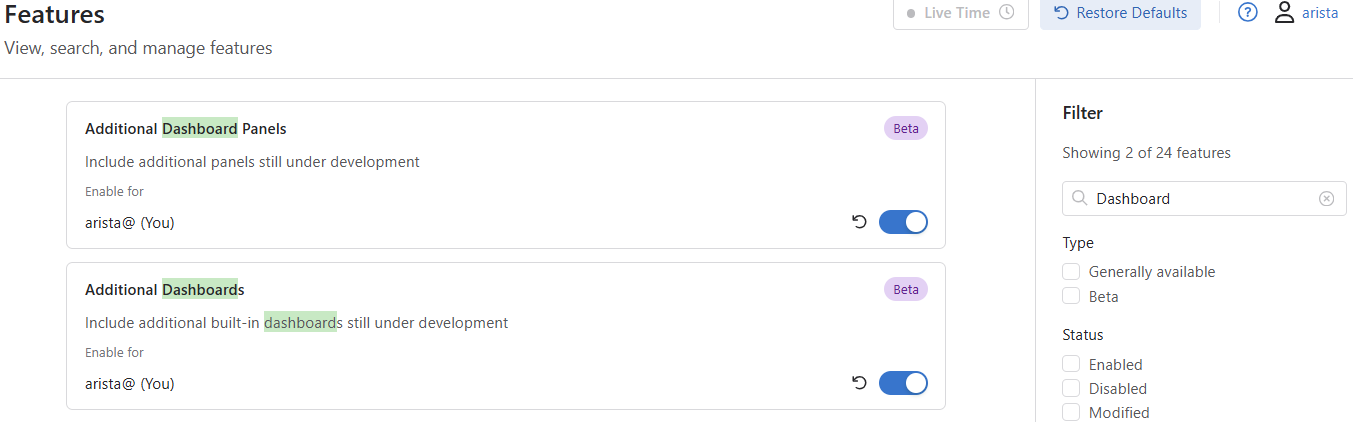
We are turning ON the Workspace Island—that’s the floating bar that manages our drafts—and the Campus Beta Features, which unlock the specific automation Studios we’ll be using. We’re also enabling the Timepicker, Additional Dashboard Panels and Additional Dashboards for telemetry functions.
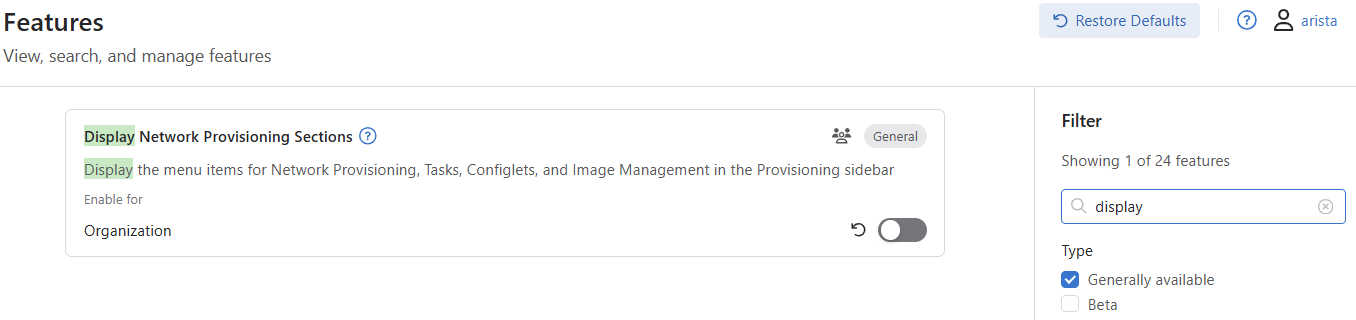
Finally, we’re turning OFF the Display Network Provisioning Sections. This hides the legacy 'Configlet' menus to keep our sidebar clean and focused only on the modern Studio workflow we’re here to master.
1) Click the Gear icon (Settings) in the bottom-left corner.
2) Click on Features from the white Settings panel on the left.
3) Use the search box or scroll to adjust the following toggles:
-
ON: Workspace Island
-
ON: Campus Beta Features
-
ON: Additional Dashboard Panels
-
ON: Additional Dashboards
-
OFF: Display Network Provisioning Sections
Turn on: Workspace Island
Turn on: Campus Beta Features
Turn on: Additional Dashboard Panels & Additional Dashboards
Turn off: Display Network Provisioning Sections
Click Disable to continue.
Environment preparation is complete. You are ready for the next lab.