Lab: Campus Fabric Studio L3LS
The Campus Fabric Studio allows you to set up and configure a complete campus network with a best-practice auto-generated configuration. In this studio, you define device roles and connections within the fabric and configure L2 and L3 services across the campus.
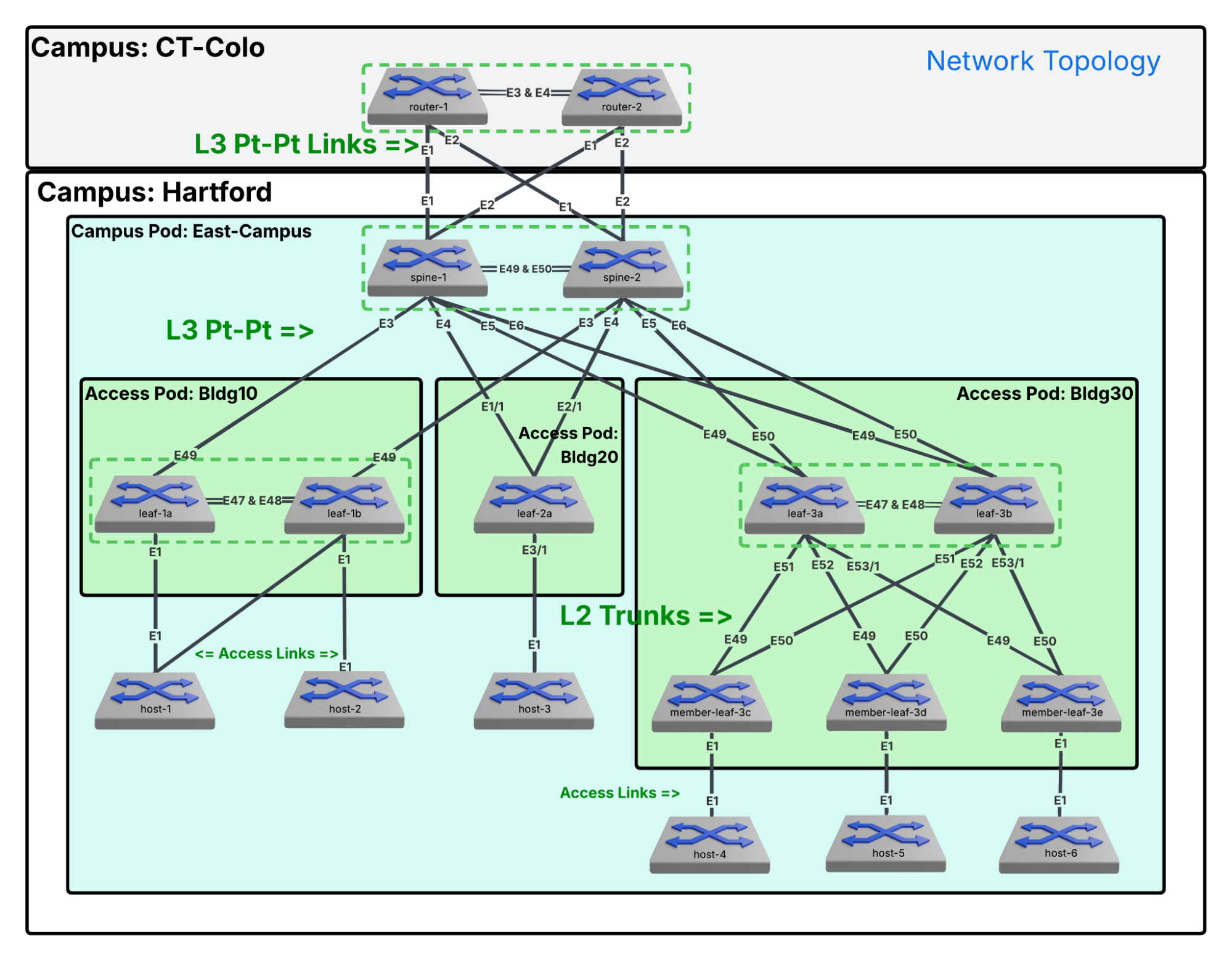
There are several Campus Architecture options. This guide is going to focus on a L3LS (Layer 3 Leaf Spine) design.
Lab Tasks – The Campus Fabric
We are moving into the Campus Fabric Studio to build our blueprint. We’ll start by naming our campus Hartford and creating a pod called East-Campus. Think of the 'Pod' as a logical container—like a cluster of buildings—that shares a spine layer. We are selecting an L3 Campus Type with OSPF as our underlying routing protocol
1) Select Network Hierarchy from the blue left panel.
2) Click Configure Network Hierarchy to launch the Campus Fabric Studio.
3) Click + Campus Fabric named Hartford. A workspace is created automatically. Click the blue arrow to the right of the name.
4) Add a Campus Pod named East-Campus. Click the blue arrow to the right.
5) Set Campus Type to L3. Leave other settings as default.
6) Set Underlay Routing Protocol to OSPF.
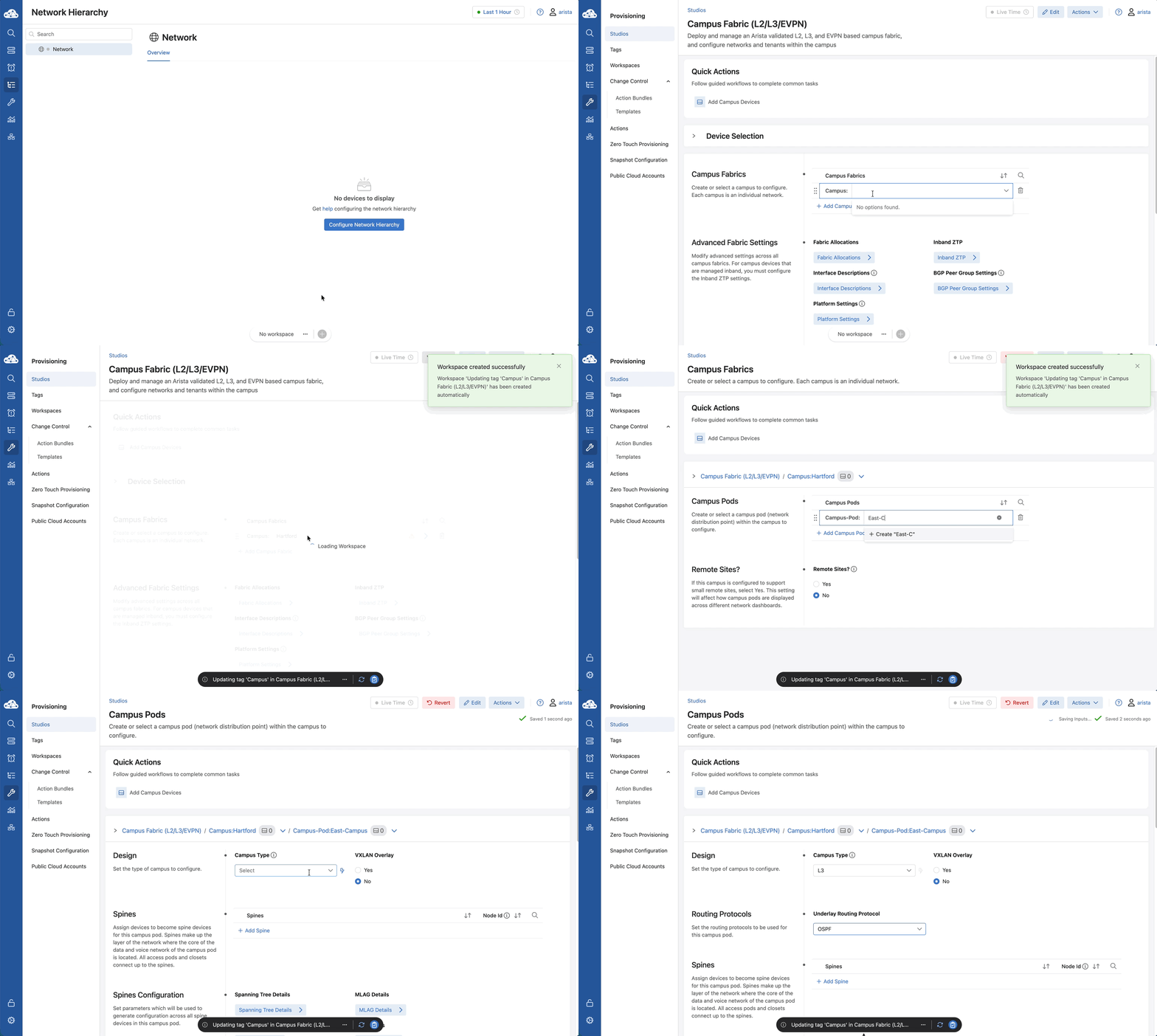
Campus Pods can be thought of as a building, group of buildings, etc. Each campus pod will share a spine layer and will have one or more access pods.
In this lab, we will treat East-Campus as if it has multiple buildings with multiple access pods.
Lab Tasks – Spines and Access Pods
Now we’re building the skeleton. We'll add our spines first, then create three Access Pods: Bldg10, Bldg20, and Bldg30. This mimics a real-world campus layout.
1) Click + Add Spine and select spine-1, confirm the auto-assign tag prompt then add spine-2.
2) Scroll down and create three access pods by clicking + Add Access Pod for each: Bldg10, Bldg20, and Bldg30.
3) Select the blue arrow for Bldg10 and add Leafs: leaf-1a and leaf-1b (leave Node Id empty for now).
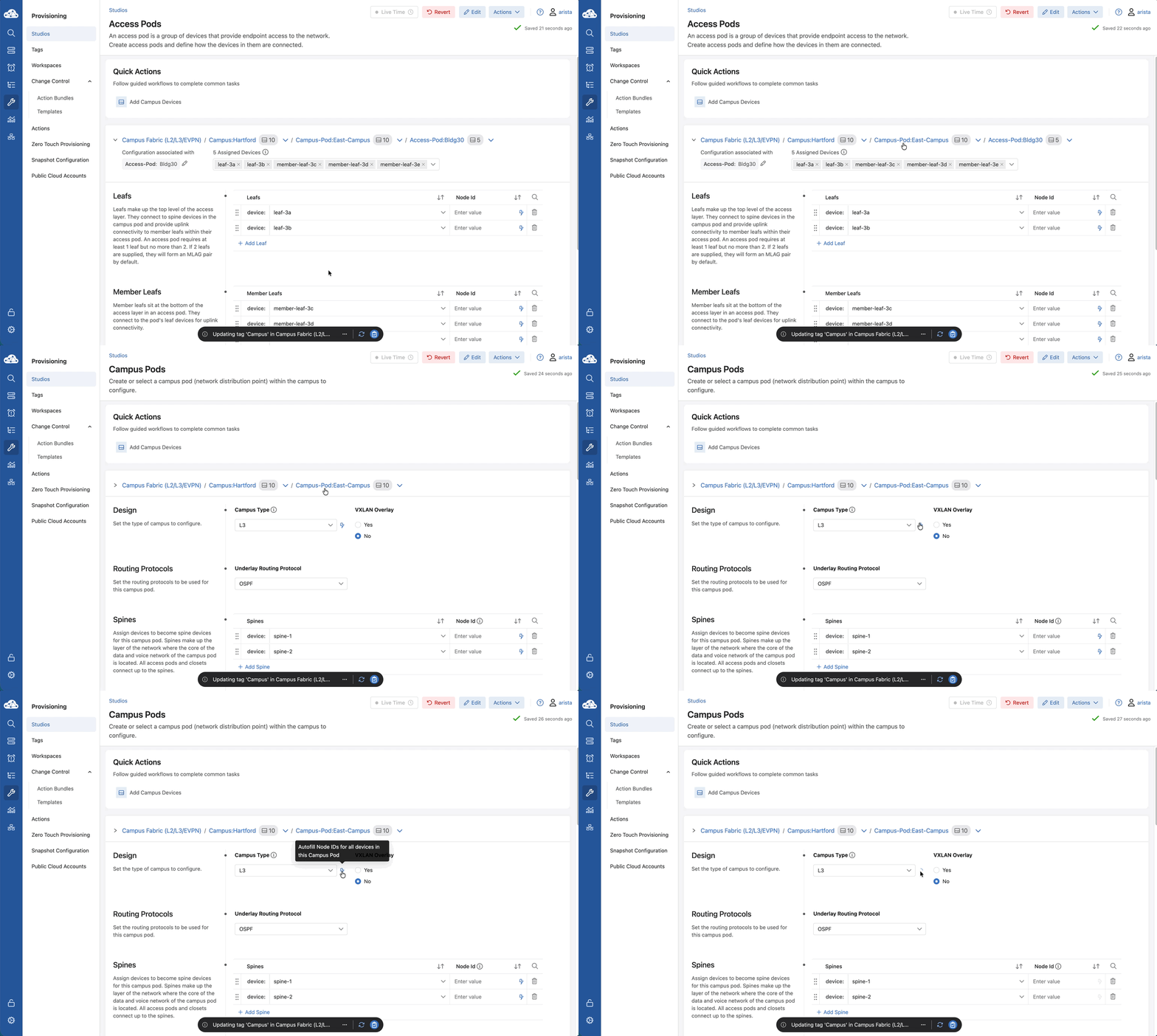
We will refer to this line as the Campus Fabric Tree:

4) Use the dropdown adjacent to Access-Pod:Bldg10 in the Campus Fabric Tree to switch to Bldg20. Add leaf-2a.
5) Switch to Bldg30. Add Leafs leaf-3a, leaf-3b and Member Leafs member-leaf-3c, 3d, and 3e.
Lab Tasks – Node assignments
Once our leaves are assigned to their access-pods, we’ll hit the Lightning Bolt icon to automatically assign Node IDs. The Node Id uniquely identifies a switch in a campus pod. This number will determine the in-band management IP assigned to the device. Manipulating this value grants you control over the management IP of the switch.
1) Click Campus-Pod:East-Campus in the blue Campus Fabric Tree (upper blue text).
2) Click the Lightning Bolt icon ⚡️ to the right of L3 - the Campus Type selector to automatically assign Node IDs.
Lab Tasks – Inband Management
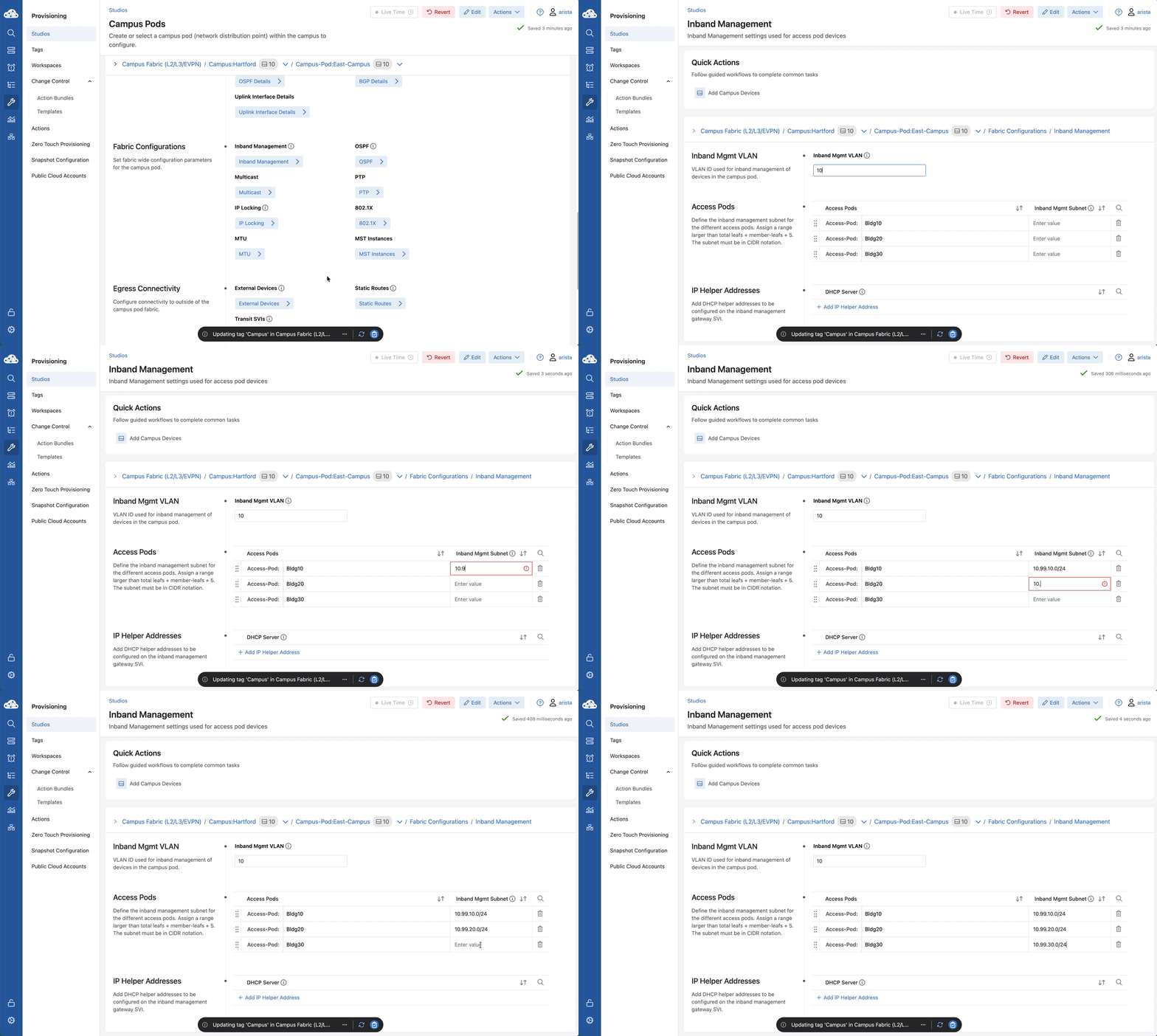
Since we don't always have a secondary management network in every closet, we’re setting up Inband Management. We’ll assign a specific VLAN (VLAN 10) and define subnets for each building. CloudVision will use these to carve out management IPs automatically based on those Node IDs we just set.
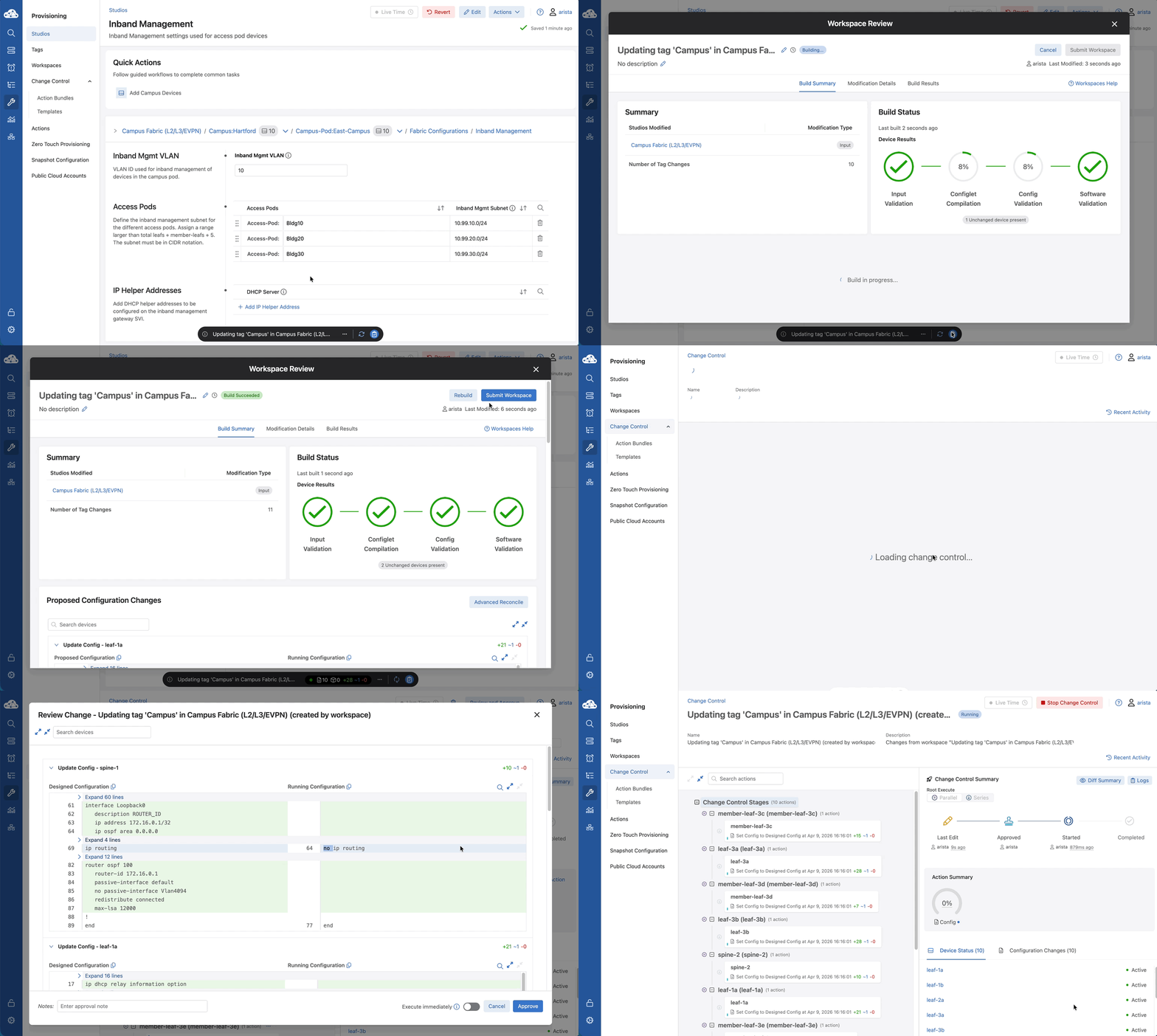
1) Stay on the East-Campus page. Scroll down to locate Fabric Configurations (left) and click the blue Inband Management box.
2) Populate the following fields:
- Inband Mgmt VLAN: 10
| Access Pod | Inband Mgmt Subnet |
|---|---|
| Bldg10 | 10.99.10.0/24 |
| Bldg20 | 10.99.20.0/24 |
| Bldg30 | 10.99.30.0/24 |
Lab Tasks – Change Control Review and Submission
At this point you have successfully created an L3LS campus fabric that is ready to be reviewed through the change control process.
Your changes are currently 'staged'—they exist in the CloudVision database but not on the switches. When we click Review and Submit, we are asking CloudVision to validate our logic.
Once we move to Change Control (by submitting the workspace), you get one last look at the proposed config. When you toggle Execute immediately and hit Approve, CloudVision begins the synchronized push to the hardware. This is how you deploy an entire campus fabric without ever typing conf t.
Change Controls are used to push configuration changes to your network. Workspaces can be created and abandoned without ever affecting the running configuration of your devices.
You'll use Change Control to approve and execute changes that you've made in Workspaces to affect change on your network.
1) On the Workspace Island, click the Review and Submit button (blue clipboard icon).
2) Verify all Build Status checks pass.
3) Scroll down in the workspace and review the Proposed changes to all the devices.
4) Click Submit Workspace, then click View Change Control.
5) Click Review and Approve (top-right).
- Notice how you are given a second chance to verify the proposed changes.
6) On the bottom, right - Toggle Execute immediately to ON, then click Approve and Execute. The changes will be applied to the switches.
Lab Tasks – Campus Services: Non-VXLAN
We’re adding VLANs 110, 120, and 130. Notice that we provide the subnets, but we don't manually assign gateway IPs for every switch. CloudVision knows this is an L3LS topology, so it automatically places the Virtual Router addresses on the Leaf switches where the users live. This is 'Day 1' operations—simple, repeatable, and automated.
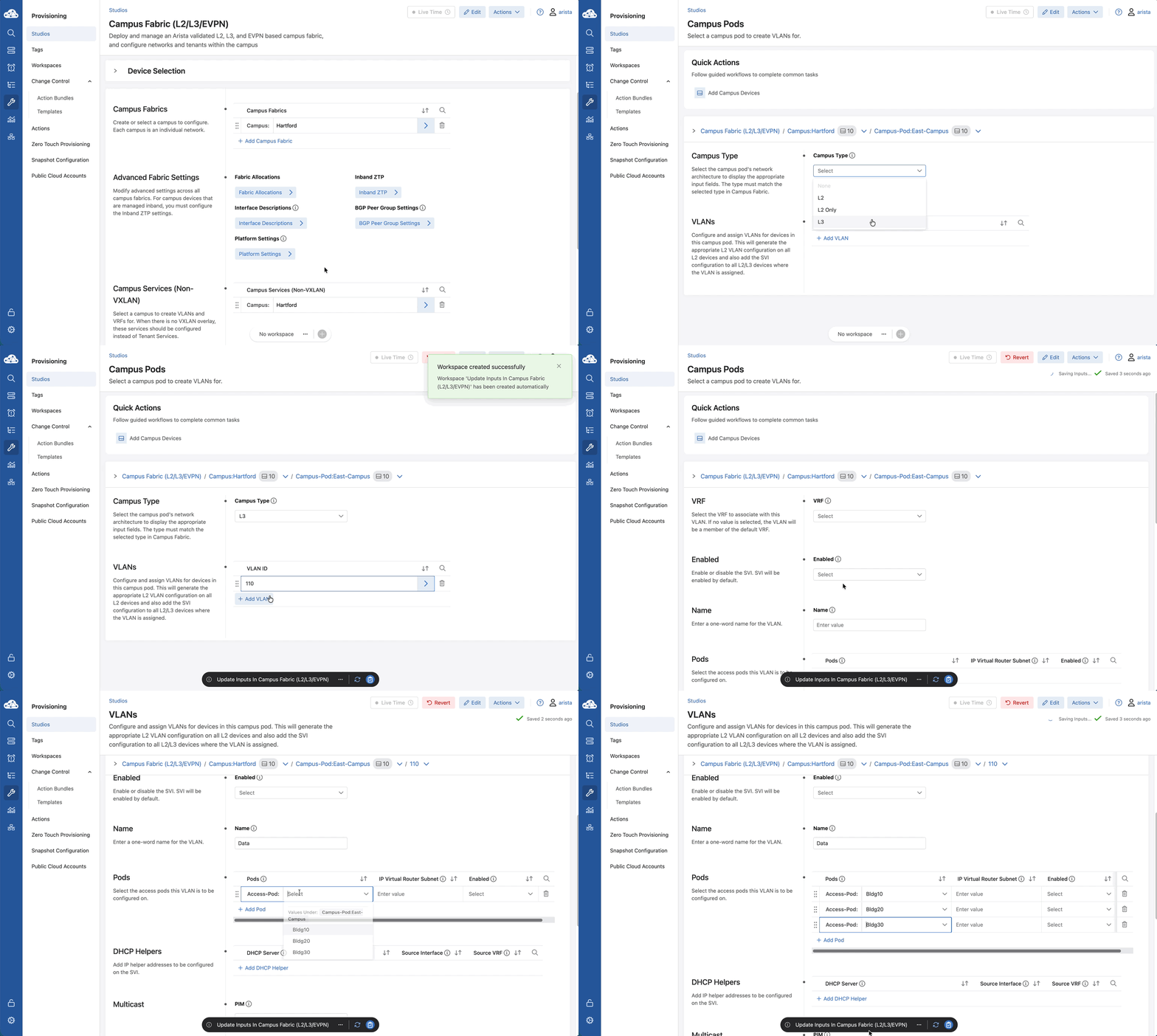
1) Return to Provisioning > Studios > Campus Fabric studio
2) Scroll down and click the arrow next to Campus Services (Non-VXLAN) > Hartford and then the arrow next to East-Campus.
3) Set Campus Type to L3.
4) Click + Add VLAN to enter the VLAN ID (numbers) 110,120,130.
5) Click VLAN 110 and enter the information from the table.
6) Next, in the Campus Fabric Tree to switch to VLAN 120 to enter the information and then again for VLAN 130.
| VLAN | Name | Pods | IP Virtual Router Subnet |
|---|---|---|---|
| 110 | Data | Bldg10 | 10.110.10.0/24 |
| Bldg20 | 10.110.20.0/24 | ||
| Bldg30 | 10.110.30.0/24 | ||
| 120 | Voice | Bldg10 | 10.120.10.0/24 |
| Bldg20 | 10.120.20.0/24 | ||
| Bldg30 | 10.120.30.0/24 | ||
| 130 | Guest | Bldg10 | 10.130.10.0/24 |
| Bldg20 | 10.130.20.0/24 | ||
| Bldg30 | 10.130.30.0/24 |
You’ll notice that you do not enter the IP address of your virtual router (VLAN gateway) here. This will be either the first (.1) or last (.254 in a /24) IP address in the subnet. This is configurable in the Services Allocations section.
Lab Tasks – Change Control Review and Submission 2
At this point you have successfully defined your client VLANs. This is a good example of a Day-1 operation. Submitting your workspace here will illustrate the proposed config changes that occur since your “underlay” has already been defined.
1) On the Workspace Island, click the Review and Submit button.
2) Verify all Build Status checks pass.
3) Scroll down to review configurations.
-
Notice how VLANs and the VLAN virtual-router addresses are created on the Leaf switches. This is due to the topology type selected (L3LS).
-
The additional VLANs are added to the trunk ports connected to the member leafs.
4) Click Submit Workspace, then click View Change Control.
5) Click Review and Approve (top-right).
6) Click Approve and Execute to apply all the changes.
Congratulations. Time to move on to the next lab.