Lab 4 - Static Config Studio - Configlet Library
The Configlet Library is the central repository for all reusable CLI snippets. We will be pushing CLI commands to the devices using the power of inheritance.
Lab Tasks – Configlets
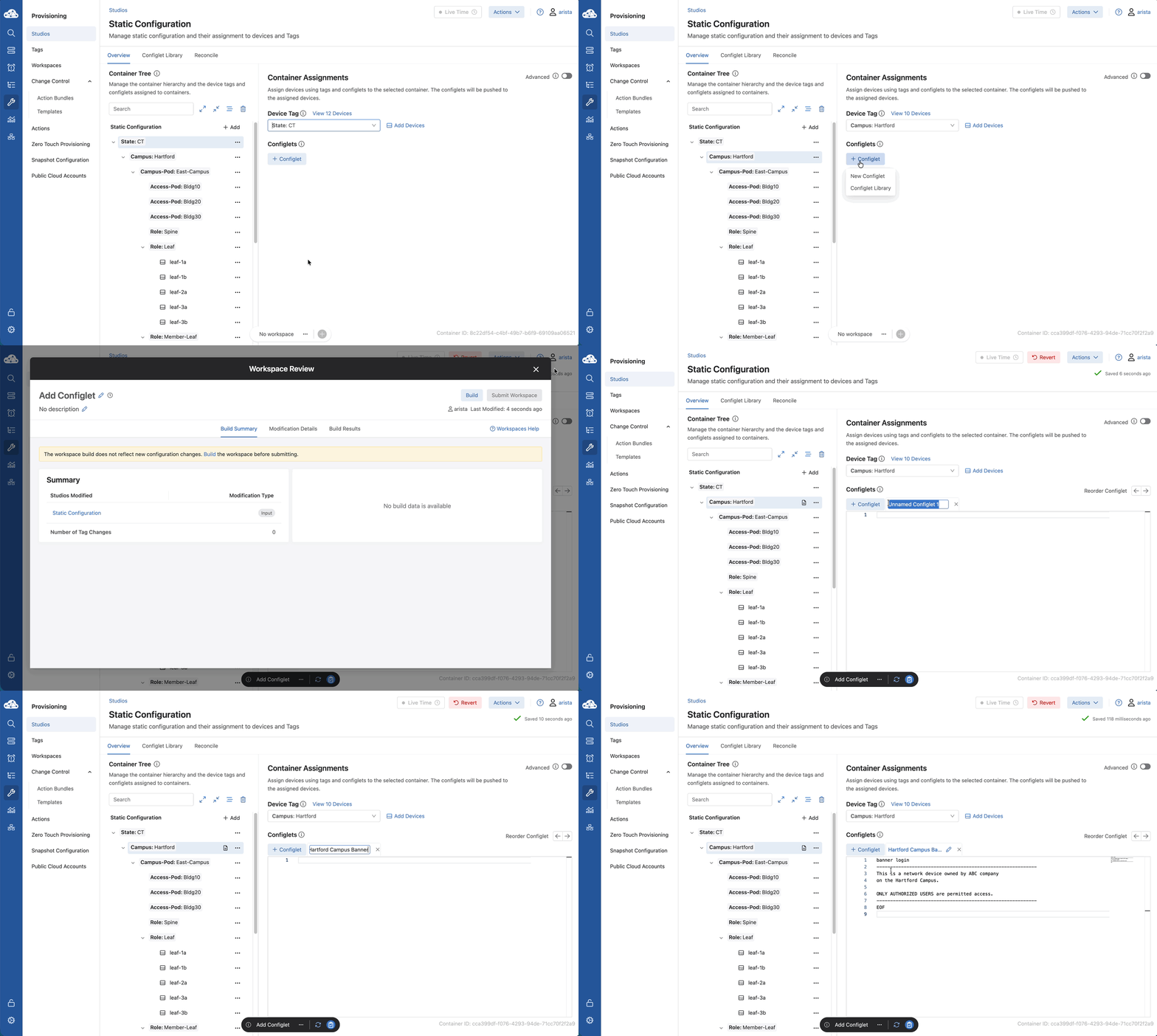
Now that our container tree is ready, it’s time to fill it. We’re going to the Static Configuration Studio to create a new Configlet. We'll call this one the Hartford Campus Banner.
The key concept here is that we place the configuration snippet in one container of the configlet hierarchy and 10 devices inherit that configlet; adding the CLI to their designed config.
This approach provides an efficient and scalable method for managing large-scale network configurations.
1) In the Static Configuration studio, in the Container Tree, click Campus: Hartford.
2) Click + Configlet > New Configlet.
3) If necessary, if a Workspace Review window pops up, click X to close it.
4) Click Unnamed Configlet 1, and re-name it: Hartford Campus Banner
5) Paste the following CLI commands in the text box next to number 1.
banner login
\-----------------------------------------------------------
This is a network device owned by ABC company
on the Hartford Campus.

ONLY AUTHORIZED USERS are permitted access.
\-----------------------------------------------------------
EOF
Lab Tasks – Change Control Review and Submission
1) On the Workspace Island, click Review and Submit. 2) Verify all validation checks pass and confirm the config change on all 10 devices. 3) Click Submit Workspace, then View Change Control. 4) Click Review and Approve > Approve and Execute.
Lab Tasks – Configlet Library (The Inventory)
Return to the Static Configuration Studio
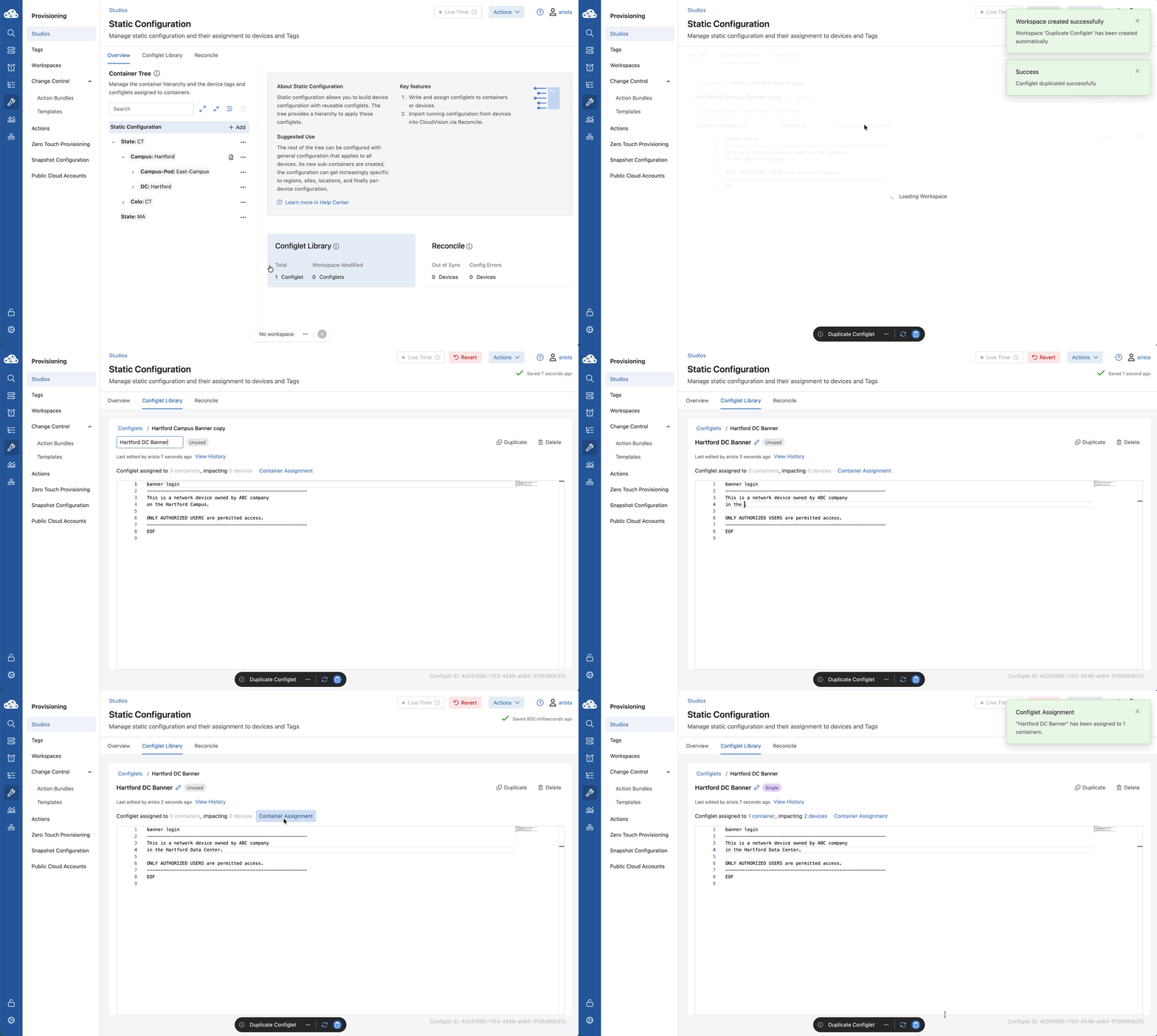
The Data Center team wants a similar banner but with different text. We can go back to our Configlet Library, find our Hartford Campus Banner, and hit Duplicate.
We’ll tweak the text to say 'Data Center' instead of 'Campus' and rename it to Hartford DC Banner. Now, we’ll point it specifically at the DC: Hartford container.
The spines below the DC: Hartford container will automatically inherit and apply this configuration to their running config.
1) In the Static Configuration studio, click Configlet Library and click Hartford Campus Banner.
2) Notice the Configlet is assigned to 1 container, and impacts 10 devices.
3) Click Duplicate (top-right).
4) Update the text inside the configlet:
1) Change "on the Hartford Campus" to "in the Hartford Data Center".
5) Rename the configlet to Hartford DC Banner
6) Under Container Assignments, check DC: Hartford and click Assign.
7) Confirm the Configlet is assigned to 1 container, and impacts 2 devices.
8) On the Workspace Island, click Review and Submit.
9) Click Submit Workspace, then View Change Control.
10) Click Review and Approve > Approve and Execute.
Move on to the next Lab.
Next Lab
Continue to Lab 5 - Static Config Studio - Sync vs Reconcile