Lab 5 - Static Configuration Studio - Configuration Library
The Configlet Library is the central repository for all reusable CLI snippets.
Lab Tasks – Configlets
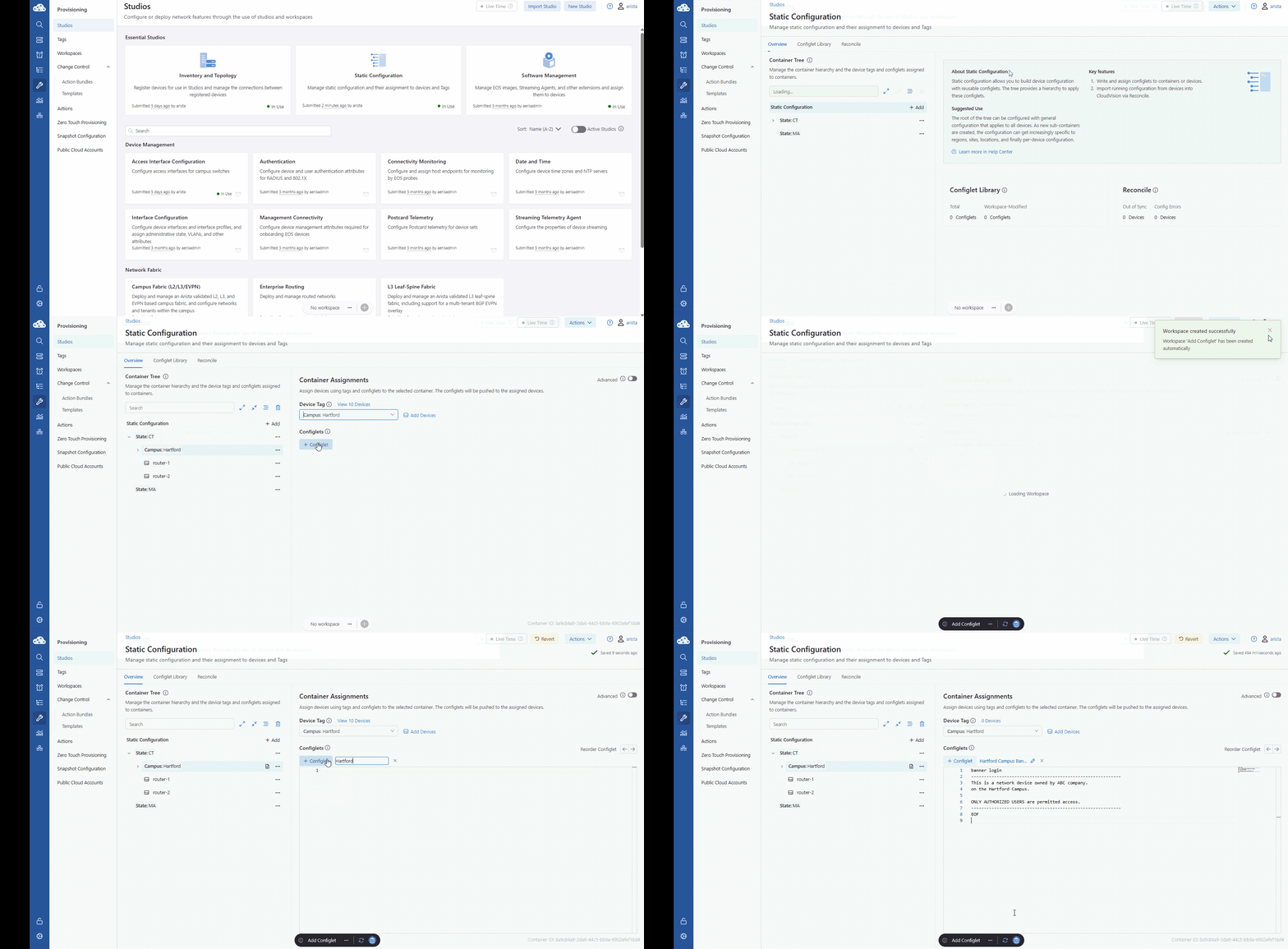
We’re diving into the Static Configuration Studio to create our first piece of shared configuration. We’re clicking on Campus: Hartford and creating a new Configlet called the Hartford Campus Banner.
Notice we are just pasting raw EOS CLI commands here. Because we selected the 'Hartford' container, we are telling CloudVision that every device living under that folder should now carry this specific banner.
- In the Static Configuration studio, In the Container Tree, click Campus: Hartford.
- Click +Configlet > New Configlet.
- Name it: Hartford Campus Banner
- Paste the following CLI commands in the text box next to number 1.
banner login
-----------------------------------------------------------
This is a network device owned by ABC company
on the Hartford Campus.

ONLY AUTHORIZED USERS are permitted access.
-----------------------------------------------------------
EOF
Lab Tasks – Change Control Review and Submission
You have successfully created the Configlet that is ready to be reviewed through the change control process. Now, look at your Workspace Island and hit Review and Submit. Even though you only created one configlet, CloudVision is showing you that 10 devices are about to be updated.
- On the Workspace Island, click Review and Submit.
- Verify all validation checks pass and confirm the config change on all 10 devices.
- Click Submit Workspace, then View Change Control.
- Click Review and Approve > Toggle Execute immediately to ON > Approve and Execute.
Note
The key concept here is that we placed the configuration snippet in one container of the configlet hierarchy and 10 devices inherited that configlet; adding the CLI to their designed config.
This approach provides an efficient and scalable method for managing large-scale network configurations.
Lab Tasks – Configlet Library (The Inventory)
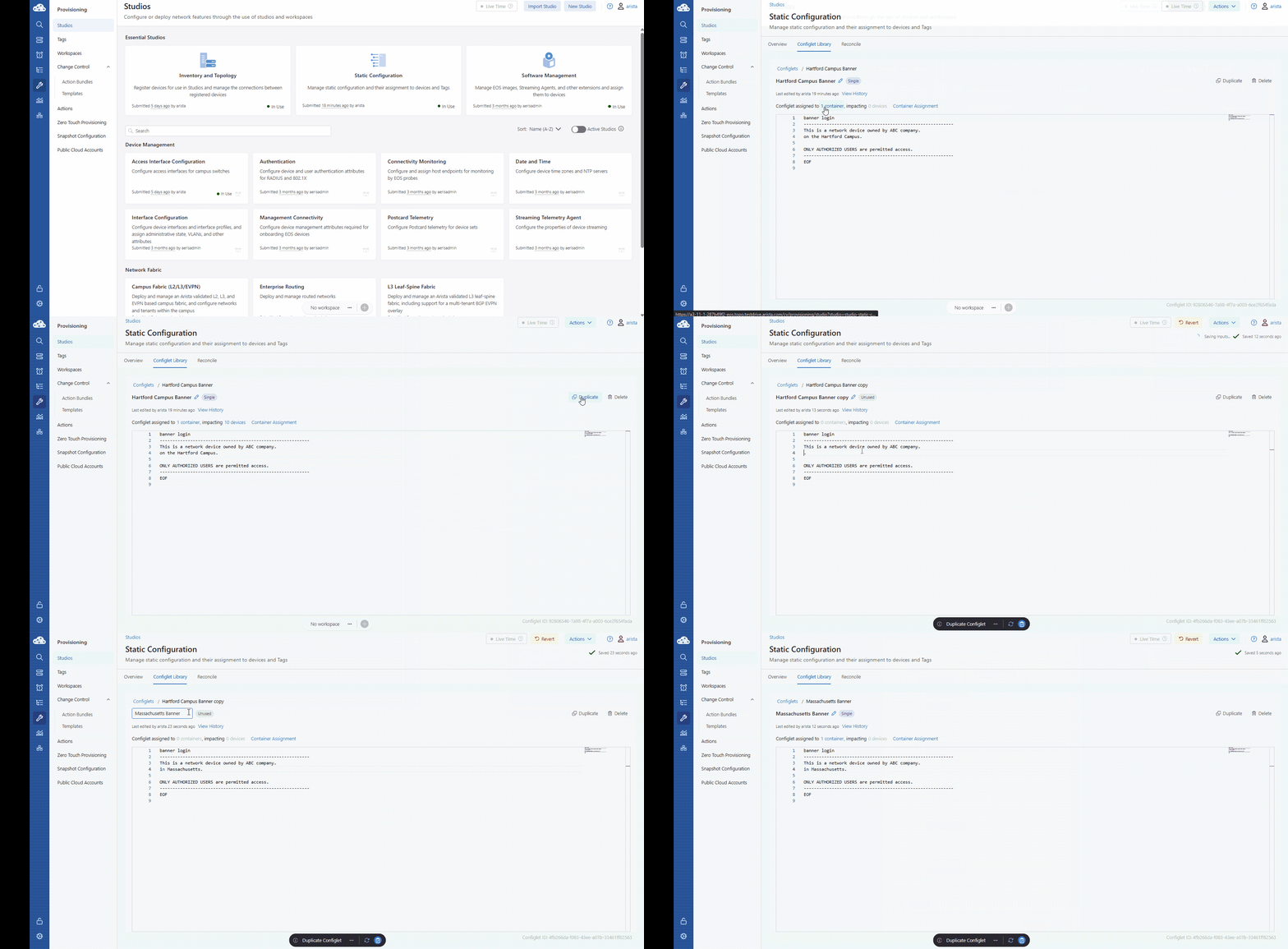
Let’s look at how we scale this out. We’re going back to the Configlet Library and hitting Duplicate on our Hartford banner. We’ll tweak the text to reflect our expansion into Massachusetts and rename it the Massachusetts Banner.
Even though we don’t have any devices in the State: MA container yet, we are pre-configuring the 'bucket'. The moment a new switch is tagged with 'State: MA' and dropped into that container, this will be applied. This 'set and forget' approach is the gold standard for large-scale, automated network management.
- If necessary, return to the Static Configuration Studio.
- In the Static Configuration studio, click Configlet Library and click Hartford Campus Banner.
- Click Container Assignment to verify it affects 10 devices.
- Click Duplicate (top-right).
- Update the text inside the configlet:
- Change "on the Hartford Campus" to "in Massachusetts".
- Rename the configlet to Massachusetts Banner
- Under Container Assignments, check State: MA and click Assign.
- Submit and Clear Workspace. We don’t have any devices in MA, but if you did they would automatically inherit and apply this configuration to their running config.
All tasks are finished! Time to move on.