Lab 3 - Static Config Studio - Container Tree
The Container Tree is a logical structure used to organize devices and determine how configurations are inherited.
A tag is a logical classification, defined as a label:value pair, used to group devices based on a shared characteristic.
There are two types of tags: Custom tags and CloudVision tags. A custom tag is manually created and assigned by a user to devices or interfaces.
Lab Tasks – Building the Container Tree
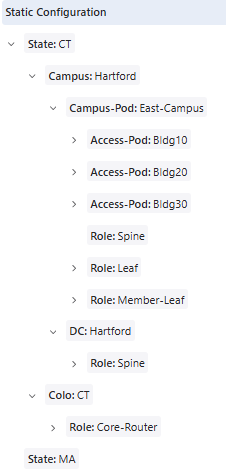
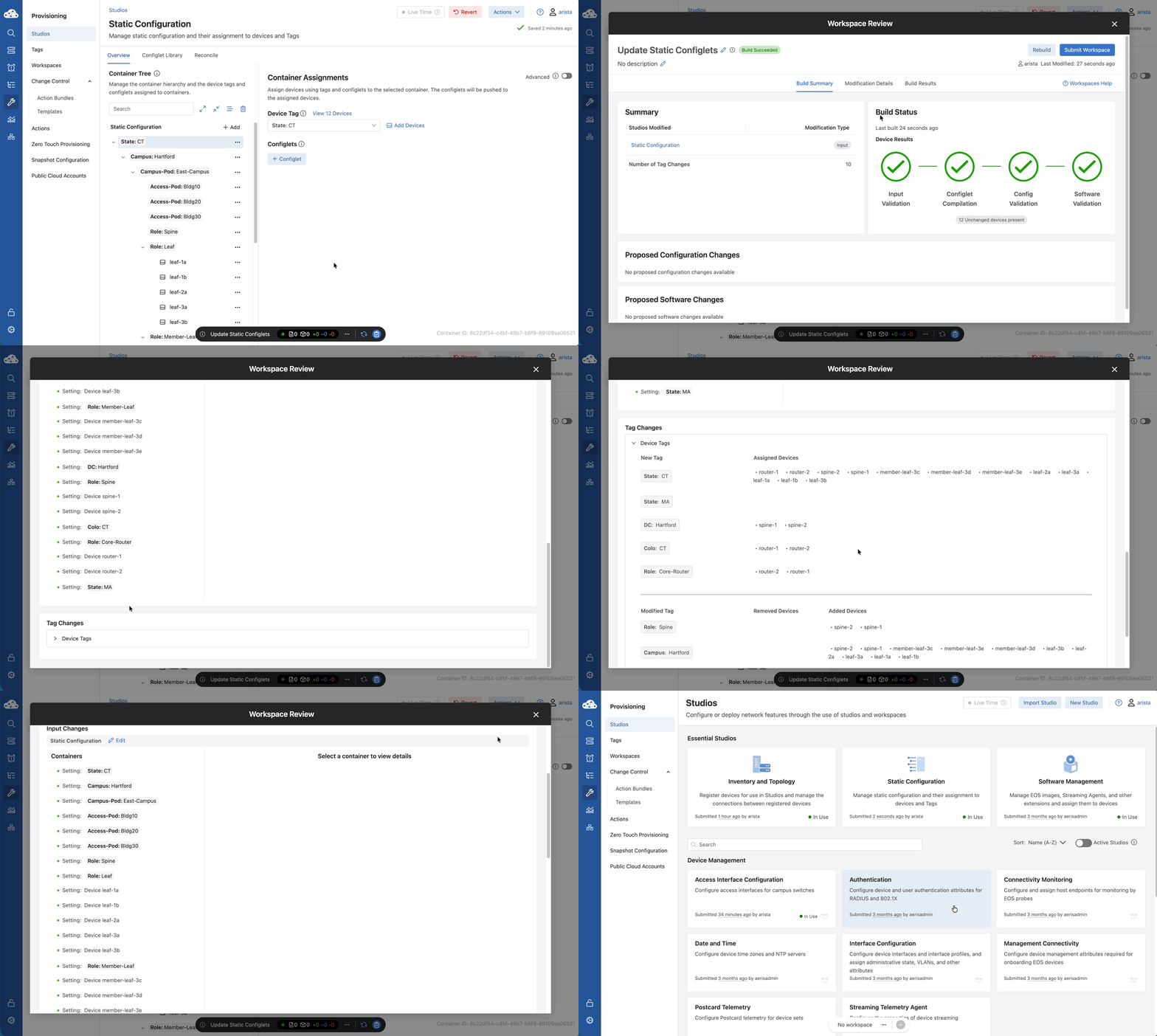
We are going to build this tree level-by-level, starting with the State: CT and State: MA top-level containers .
Notice that we are mixing two types of tags here: Custom tags that we create manually (like State) and CloudVision tags that were automatically generated during our earlier fabric setup ( Campus: Hartford).
This blend allows us to organize our network by both geography and function—nesting our Data Center and Campus Pods right under the State level .
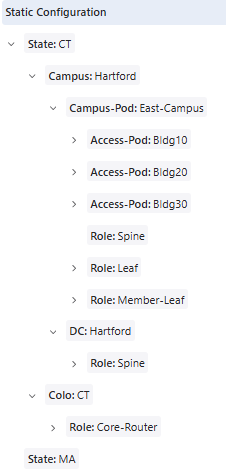
  State: CT (Custom Tags)

     Campus: Hartford (System Tags)

        Campus-Pod: East-Campus

           Access-Pod: Bldg10

           Access-Pod: Bldg20

           Access-Pod: Bldg30

              Role: Spine (no devices)

              Role: leaf

              Role: Member-Leaf

        DC: Hartford

           Role: Spine

     Colo: CT

        Role: Core-Router

  State: MA
We are going to create the following structure - move on to the next step to begin:
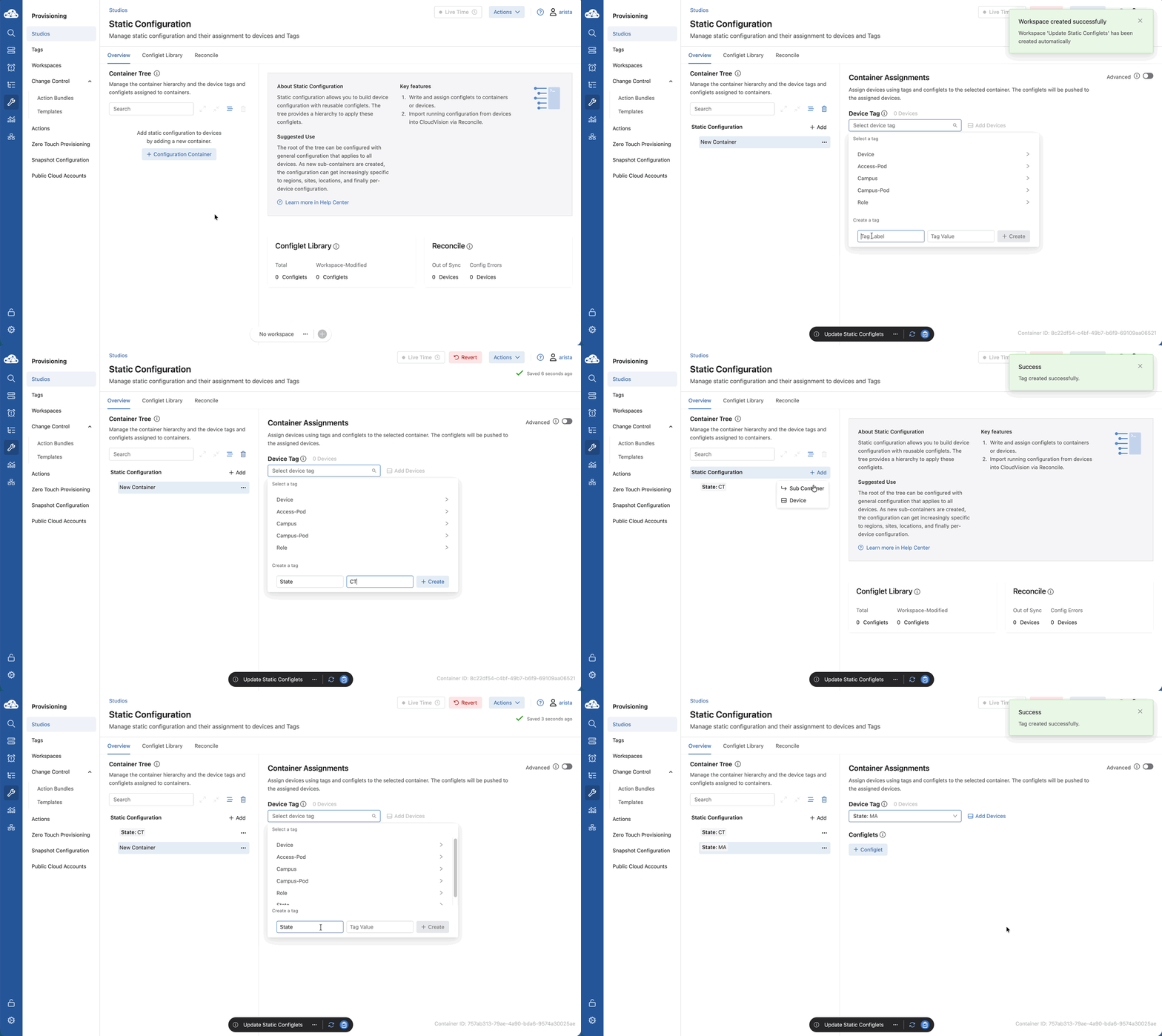
1) Navigate to Provisioning > Studios and select the Static Configuration studio. 2) Click + Configuration Container. 3) Create the first level: 1) In the Container Assignments panel (right), select the drop-down field under Device Tag. 2) At the bottom of the dialog box, create this top-level tag 1) Tag Label: State 2) Tag Value: CT 3) Click + Create 4) On the left at the top-level, to the right of Static Configuration, click +Add > Sub Container. 5) Create another first-level tag 1) Tag Label: State 2) Tag Value: MA 3) Click + Create
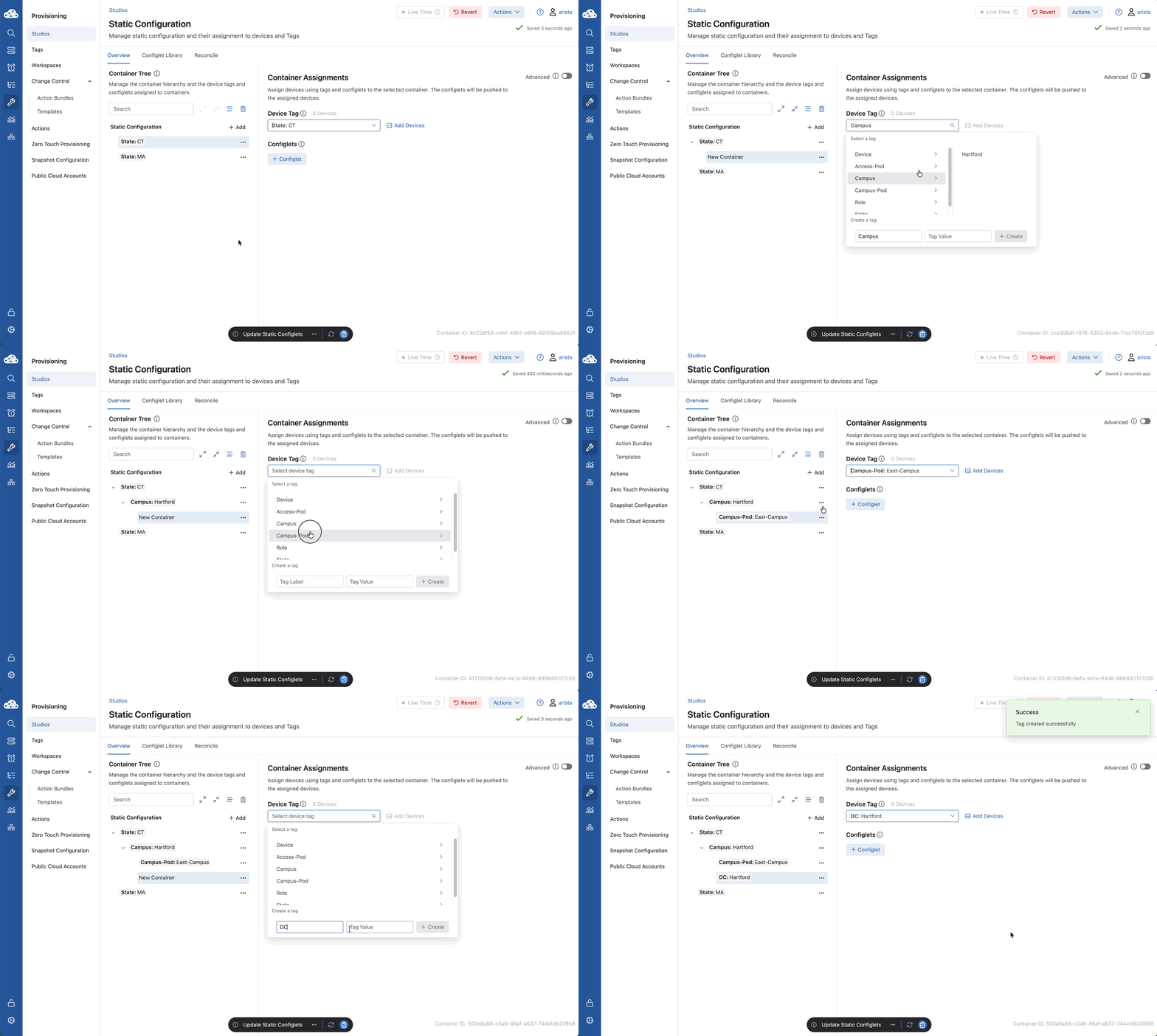
6) Click the three dots (…) next to State: CT and select Add Sub Container. 7) On the right, in the dropdown, select Campus > Hartford 8) Add one more Sub Container under State: CT 1) Tag Label: Colo 2) Tag Value: CT 3) Click + Create 9) Now, under Campus > Hartford add this Sub-Container: 1) Campus-Pod: East-Campus 10) Also under Campus > Hartford create this Sub-Container: 1) Tag Label: DC 2) Tag Value: Hartford 3) Click + Create 11) Add Sub Containers under Campus-Pod: East-Campus for the following tags: 1) Access-Pod: Bldg10 2) Access-Pod: Bldg20 3) Access-Pod: Bldg30 4) Role: Spine 5) Role: Leaf 6) Role: Member-Leaf 2) Add a Sub Container under DC: Hartford, select Role: Spine 3) Add a Sub Container under Colo: CT 1) Label: Role 2) Value: Core-Router 3) Click + Create
If your Container Tree has containers in the wrong order or at the wrong level of the hierarchy: Click the three stacked lines  in the Container Tree panel to enable you to move the containers vertically and horizontally.
Lab Tasks – Assigning Devices
Now that the 'containers' are built, we need to put the switches in them. We’re selecting our core routers, spines, and leafs and assigning them to their respective Role containers.
Once assigned, these devices aren't just names in a list; they are now part of a logical hierarchy that dictates how they behave.
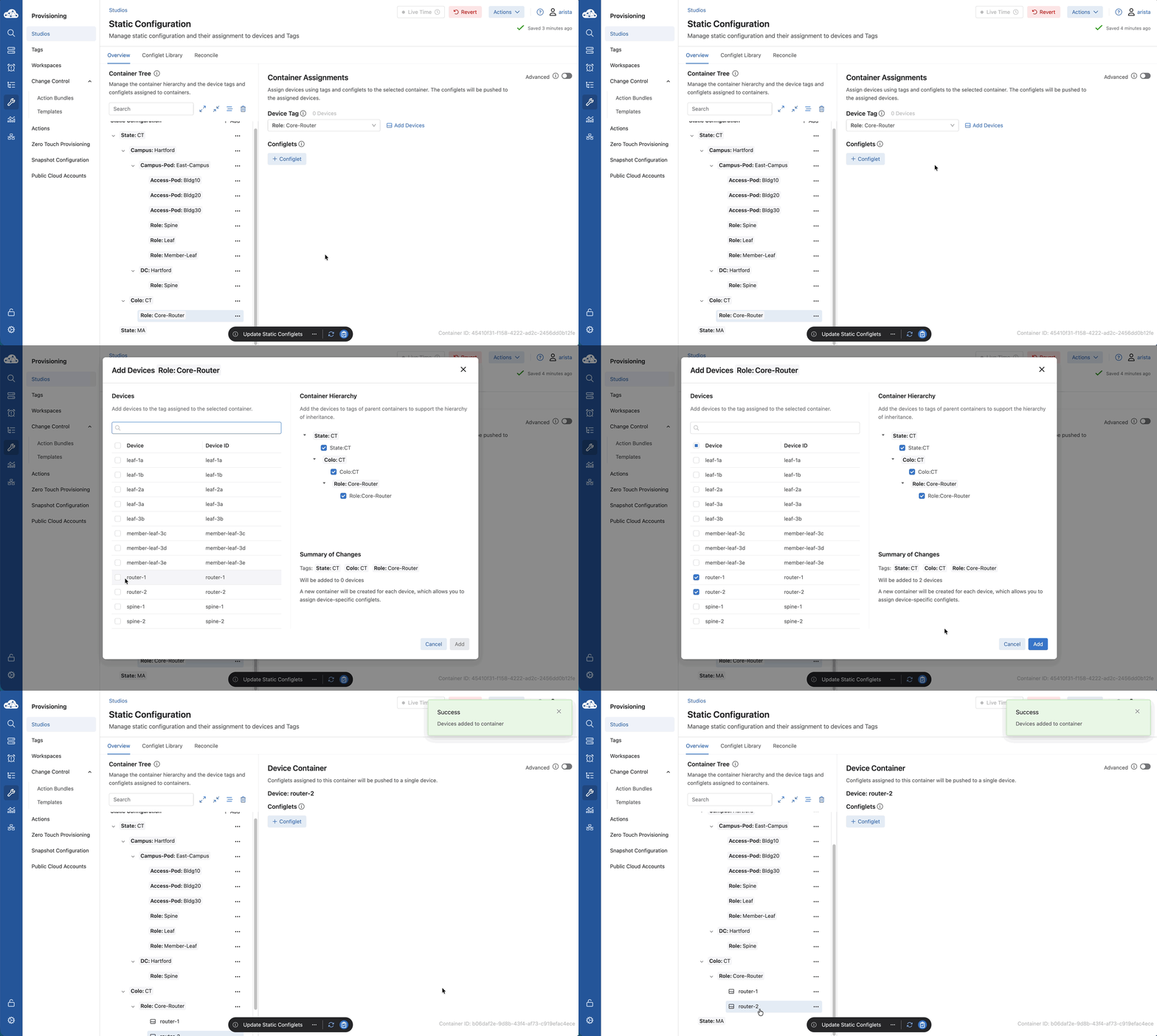
1) Below Colo: CT click Role: Core-Router in the tree. Click Add Devices (right) and check router-1, and router-2, click Add. 2) Below DC: Hartford click Role: Spine. Click Add Devices (right) and check spine-1 and spine-2, click Add. 3) Below Campus-Pod: East-Campus 1) Select Role: Member-Leaf in the tree. Click Add Devices (right) and check Member-Leaf3c, 3d, and 3e. 2) Select Role: Leaf and check all Leaf switches. 1) Note: You can hold shift to select multiple devices 4) Click Campus: Hartford 5) On the right panel next to Device Tag, click View 10 Devices to verify tag inheritance. 6) Select State: CT and click View 12 Devices to verify tag inheritance.
Lab Tasks – Change Control
When you click Review and Submit, pay close attention to the Modification Details. You’ll see the Device Tags being applied. We aren't changing the running config of the switch ports yet; we are changing the 'metadata' that CloudVision uses to manage them.
1) On the Workspace Island, click the Review and Submit button (clipboard). 2) Verify all Build Status checks pass (Validation and Compilation). 3) Click Modification Details (top center) and expand the Device Tags panel to review changes. 4) Scroll back to the top and click Submit Workspace, then Clear Workspace.
If your Container Tree looks like the image below, you’re done with this lab.
Next Lab
Continue to Lab 4 - Static Config Studio - Configlet Library